Saving platform settings requires the
super_adminrole.
Settings groups
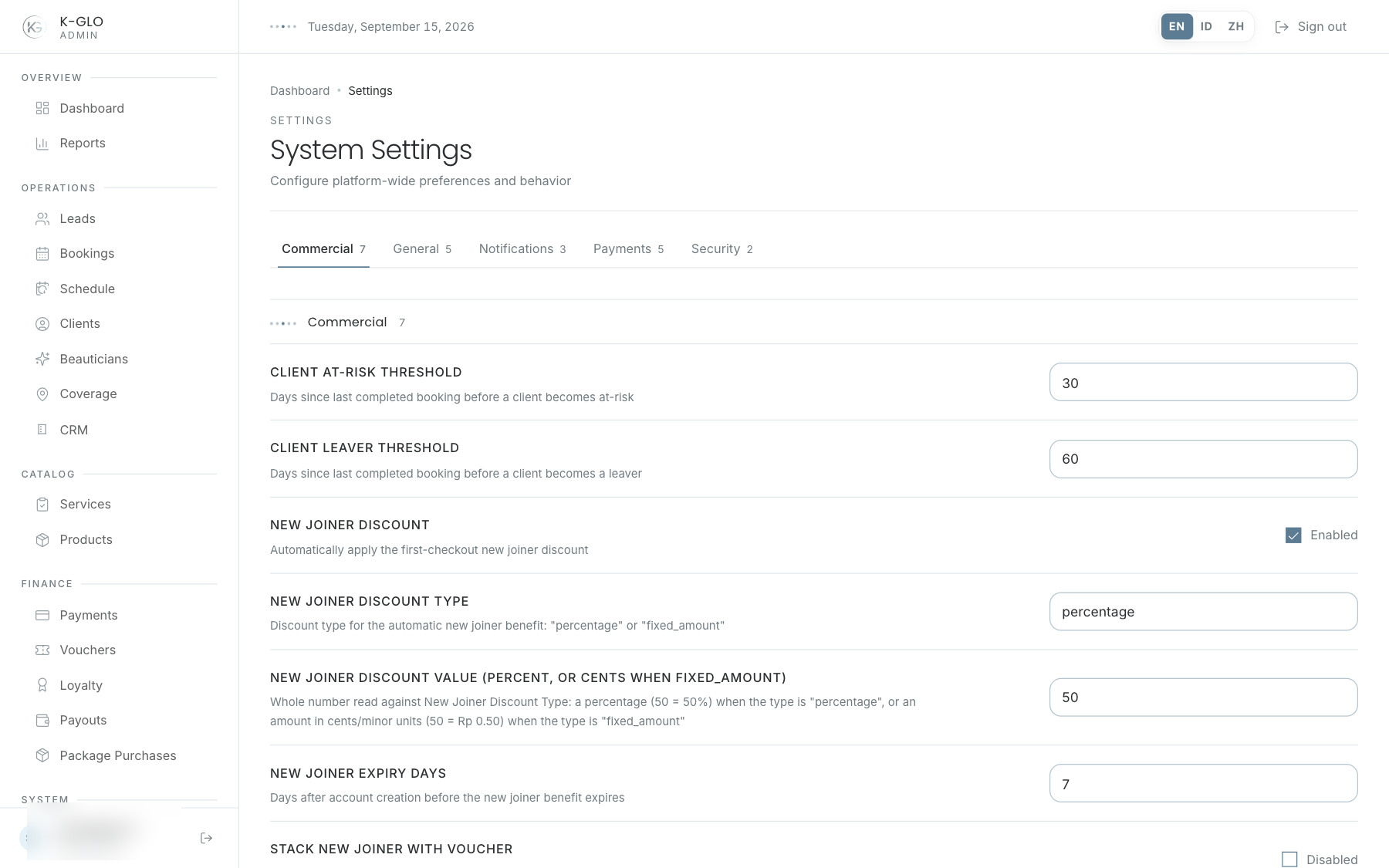
Controls reflect the setting type: text/number fields or a checkbox for booleans. Saving submits only the active group’s inputs; switching tabs without saving leaves those unsaved edits unsubmitted.
Save changes
- Select a group.
- Read every setting label and description.
- Change only the required values.
- Save the active group.
- Check the success alert.
- Reopen the group to verify the stored values.
- Test the effect in the related operational area.
The save button does not submit inactive groups.
Video walkthroughs
English Admin Web recordings from isolated demo data, slowed down so the steps are easier to follow. Secret values are masked. No external payment or provider delivery is performed.
Recorded:
admin updates a platform setting and restores its original value 0:06
Covered steps
- As super administrator, leave an edited numeric value unsaved in Bookings, switch to General, change support email, save and verify the success alert and persisted support email.
- Verify the unsaved Bookings value was not submitted; reopen General to confirm its saved value, restore support_email, and verify restoration.
regular admin cannot save platform settings 0:04
Covered steps
- As a regular admin, change the support email in the Settings UI and attempt to save.
- Verify the UI shows the access-denied message and the stored value remains unchanged.
Testing boundaries
- A downstream operational effect for support_email is not verified; the walkthrough verifies the stored setting and successful save only.