Access requirements
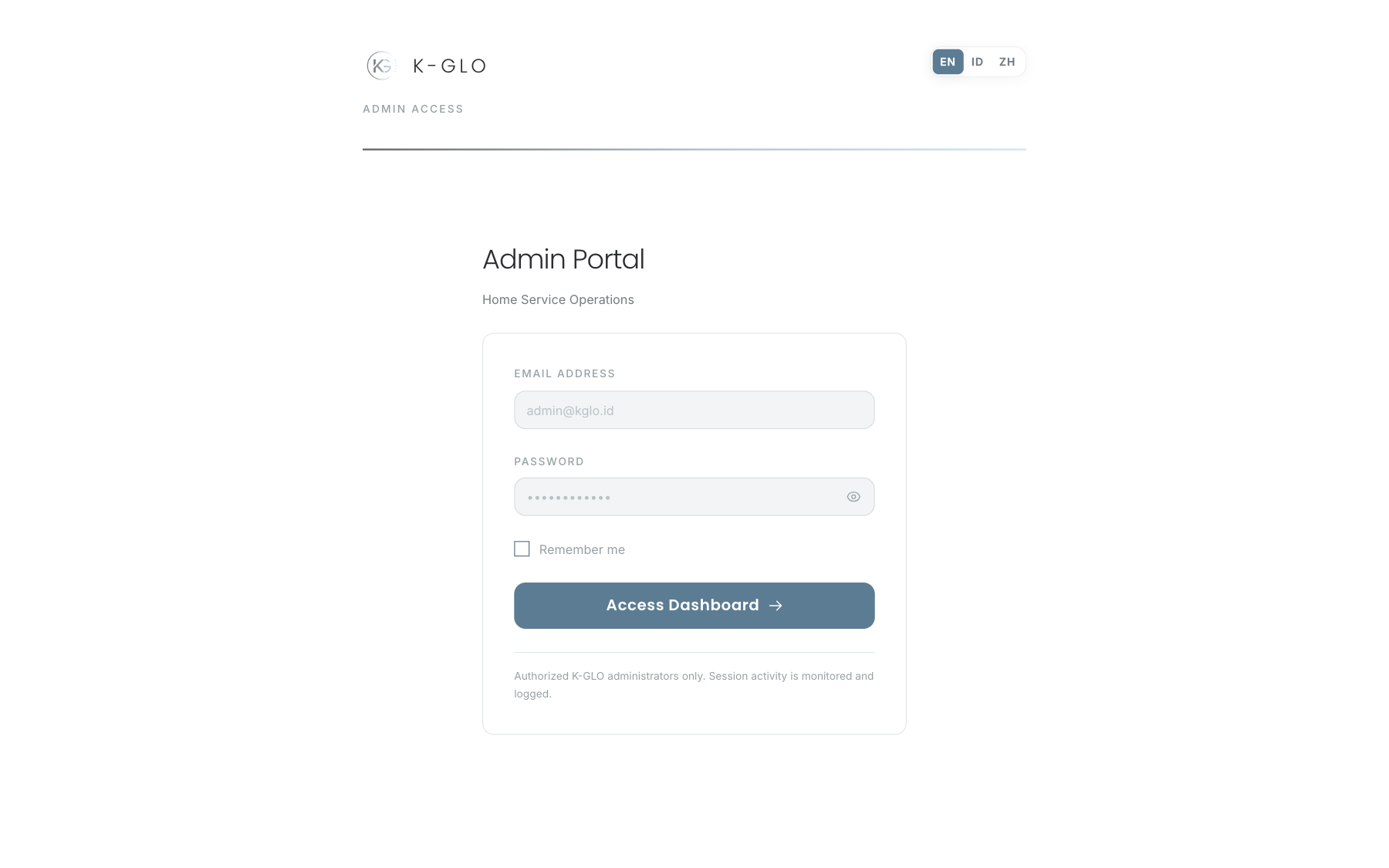
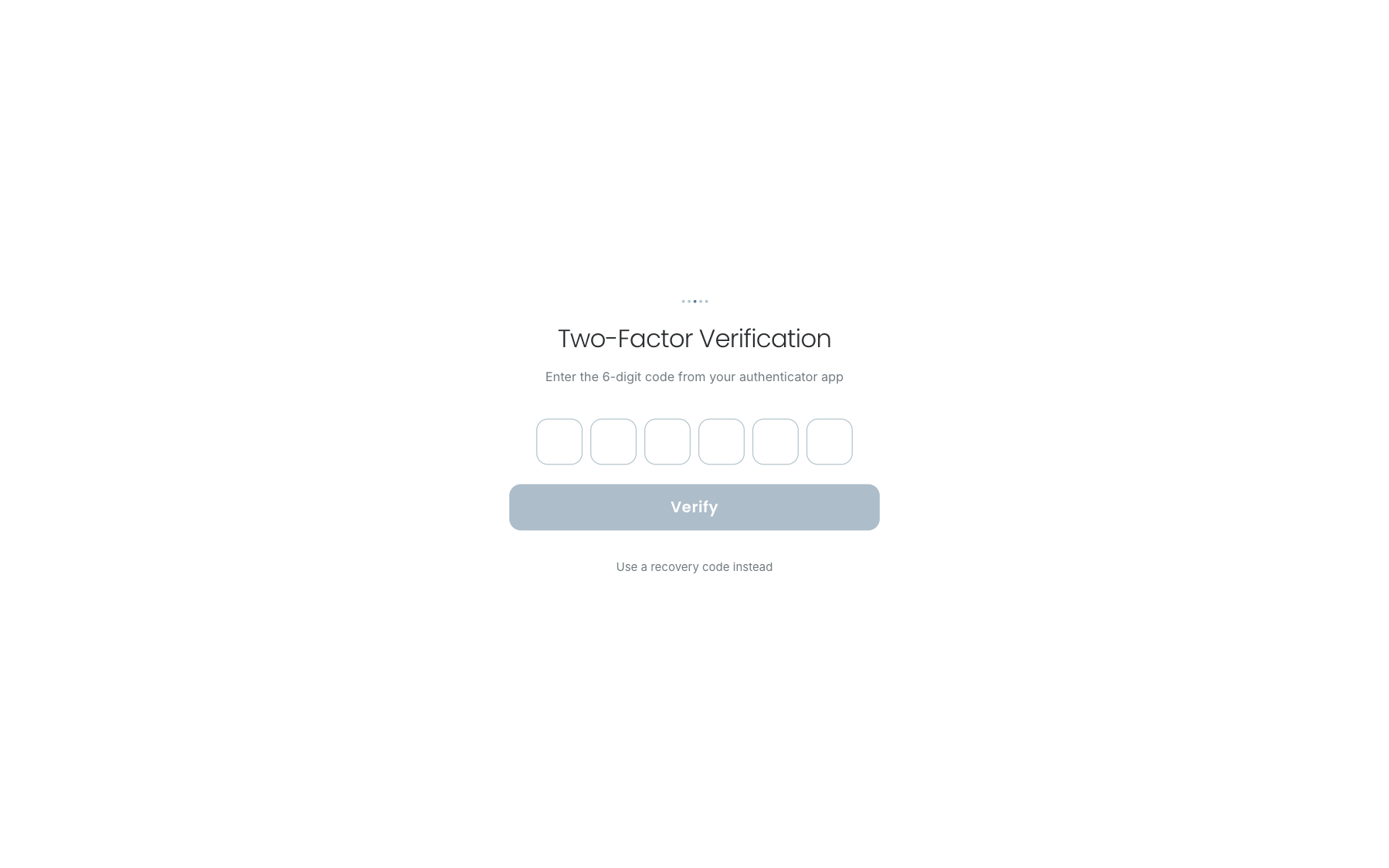
The panel is available only to authenticated users with the admin or super_admin role. Two-factor verification protects every admin route. Use the admin domain, not an /admin path on the API host.
In development, open http://admin.localhost:3333/login. The production address follows the ADMIN_URL environment configuration.
Sign-in flow
- Enter the admin account email and password.
- Optionally select Remember me only on a private device.
- Select the sign-in button.
- Enter the TOTP code from the authenticator app when prompted.
- If the authenticator is unavailable, use one unused recovery code. Show password temporarily reveals the entry; select it again to hide the value before signing in.
A recovery code works only once. Never show a TOTP or recovery code in a screenshot, support ticket, or internal message.
Navigation and page patterns
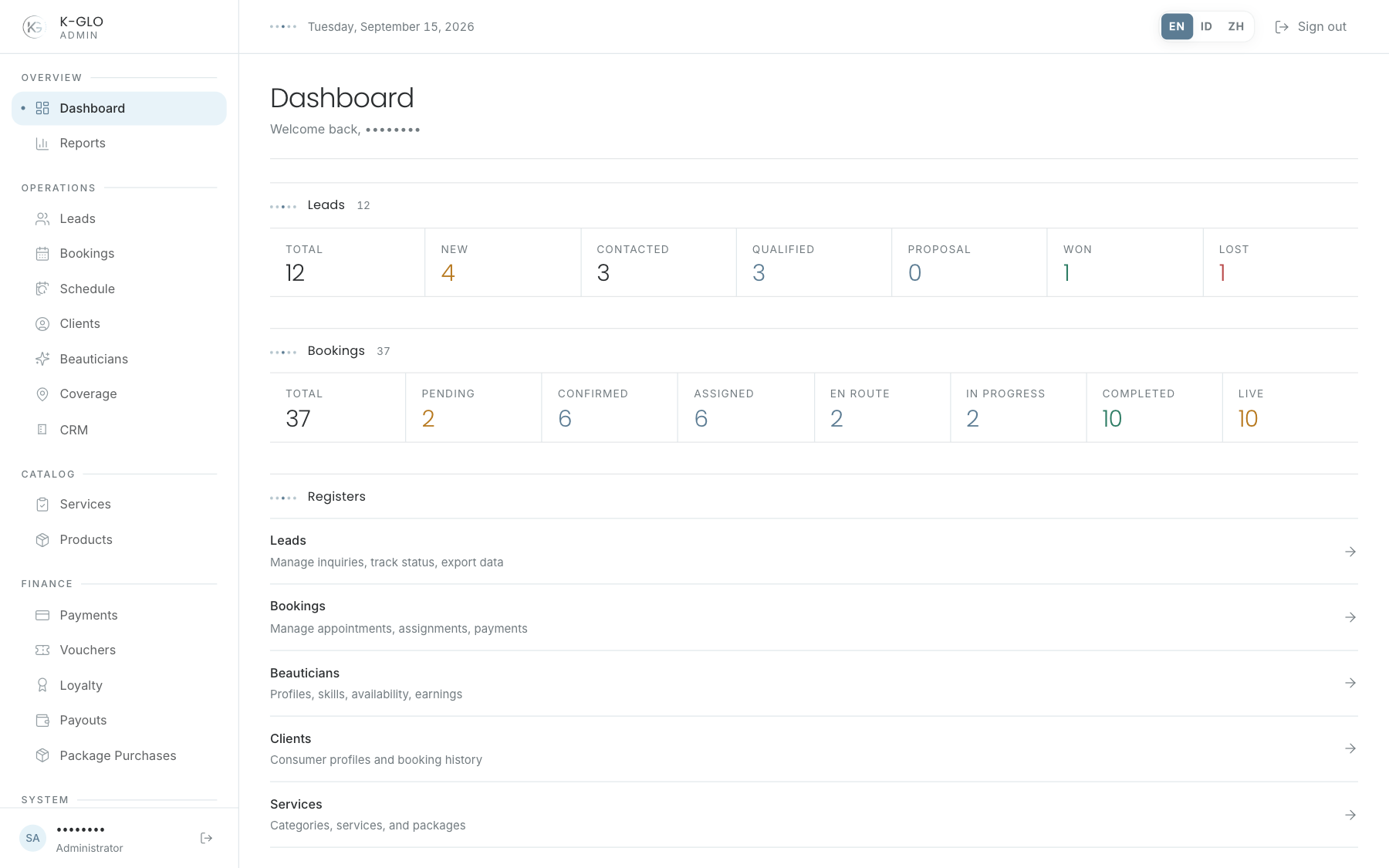
The desktop sidebar remains visible. On smaller screens, the panel button opens the navigation drawer. The Admin Web header includes the language selector, action result messages, and sign-out button.
- Figure strip: summary numbers that may also act as filters.
- Filter bar: search, status, relationship, date, or sort controls written to the URL.
- Ledger: an operational table whose rows open by click or Enter.
- Inspector: facts on the left, with status, timeline, and action forms in the right rail.
Change the language
Choose ID, EN, or ZH in the Admin Web header. The selection is stored on the server, in localStorage, and in a cookie. Indonesian is the default language. Membership tier names remain in English.
Sign out
Use the sign-out button in the header. On a shared device, make sure the login page appears before leaving the device.
Video walkthroughs
English Admin Web recordings from isolated demo data, slowed down so the steps are easier to follow. Secret values are masked. No external payment or provider delivery is performed.
Recorded:
admin signs in and signs out 0:04
Covered steps
- Open the admin login page, enter the E2E admin email and password, select Remember me, submit, and reach the dashboard.
- Sign out and confirm the login page returns.
admin rejects invalid credentials 0:03
Covered steps
- Submit deliberately incorrect demo credentials and verify the sign-in error is shown.
consumer credentials do not grant admin access 0:05
Covered steps
- Attempt admin access with the demo consumer account and verify protected admin pages return to sign-in.
admin login can reveal and hide the password 0:03
Covered steps
- Enter a harmless placeholder into the password field, reveal it, and hide it again before sign-in.
admin opens the mobile navigation drawer and follows a register link 0:05
Covered steps
- Resize to a mobile-width viewport, open the admin navigation drawer, select Clients, and confirm the drawer closes on navigation.
admin changes interface locale and persists the preference 0:05
Covered steps
- Switch the header locale through Indonesian, Chinese, and English; verify each selection is pressed and persisted in the user record, localStorage, and locale cookie.
admin updates an assigned booking status through the permitted transition 0:07
Covered steps
- Open an assigned booking inspector, verify its current state, change the status through an allowed transition, and verify the persisted status.
temporary admin enrolls, regenerates recovery codes, verifies TOTP, and disables 2FA 0:13
Covered steps
- Enroll a disposable administrator by copying the manual setup key, entering a generated TOTP and password, and confirm that ten unique recovery codes appear.
- Copy the recovery codes, regenerate them with password confirmation, and verify the previous set is invalidated.
- Sign out, complete login with a generated TOTP, then disable 2FA with password confirmation.
temporary admin recovery code is single-use and authenticator fallback completes 2FA 0:12
Covered steps
- Enroll a disposable administrator and log in using one recovery code.
- Confirm the recovery code cannot be used again, switch to authenticator verification, complete TOTP login, and disable 2FA.
admin dashboard filters status figures, opens today's live booking, and follows a register 0:11
Covered steps
- Verify the desktop sidebar is visible, open the current-day Now in the field booking, apply booking status and Live figure filters, and follow a Clients register shortcut.
admin filters and sorts the client roster, including an empty search result 0:11
Covered steps
- Search, apply a lifecycle filter and sort, confirm the filter URL and matching ledger row, then verify the empty state for a missing client.
Testing boundaries
- Authenticator enrollment and recovery-code storage in a password manager are external-app tasks; the E2E journey uses generated TOTP and checks the in-page copy state rather than storing secrets outside the admin UI.