Payout actions have a financial impact and require the
super_adminrole.
Payout lifecycle
- Generate drafts: create drafts for beauticians with eligible earnings.
- Submit: submit a selected draft for approval.
- Approve: approve the payout under the appropriate authority.
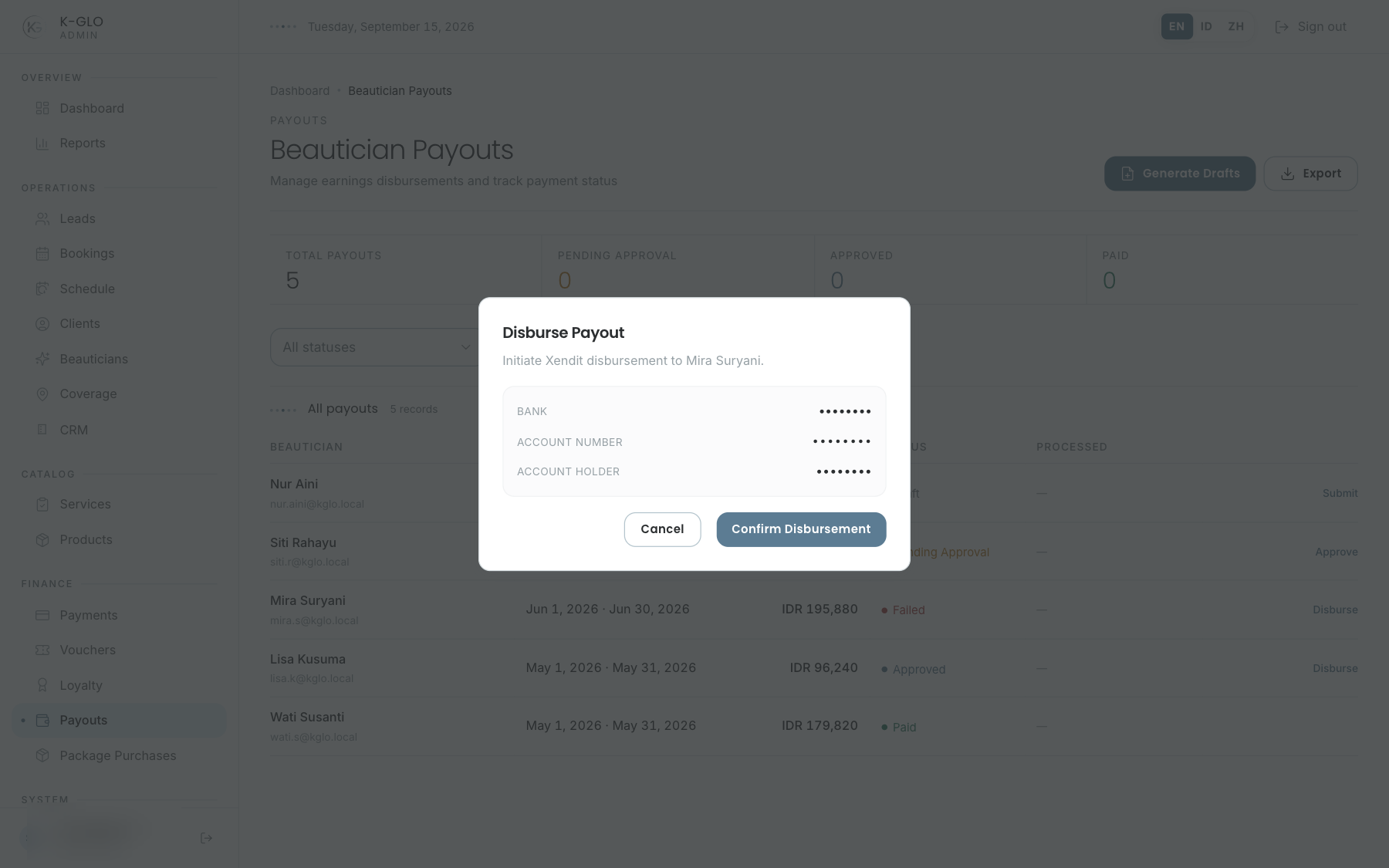
- Disburse: open a confirmation dialog with read-only bank identity. Only confirmation submits a request to the provider; cancelling leaves the payout unchanged. If Xendit is not configured, the request is rejected before a disbursement status/attempt is written.
Before disbursement
- Match the beautician, amount, and latest status.
- Check the bank identity; the dialog warns and disables confirmation when required bank data is incomplete.
- Do not repeat an action before checking the latest status.
- Use CSV for reconciliation; export retains the active status filter.
Approval is not proof of transfer. Do not report funds sent until the disbursement status and reference are confirmed. Admin E2E does not send a real transfer.
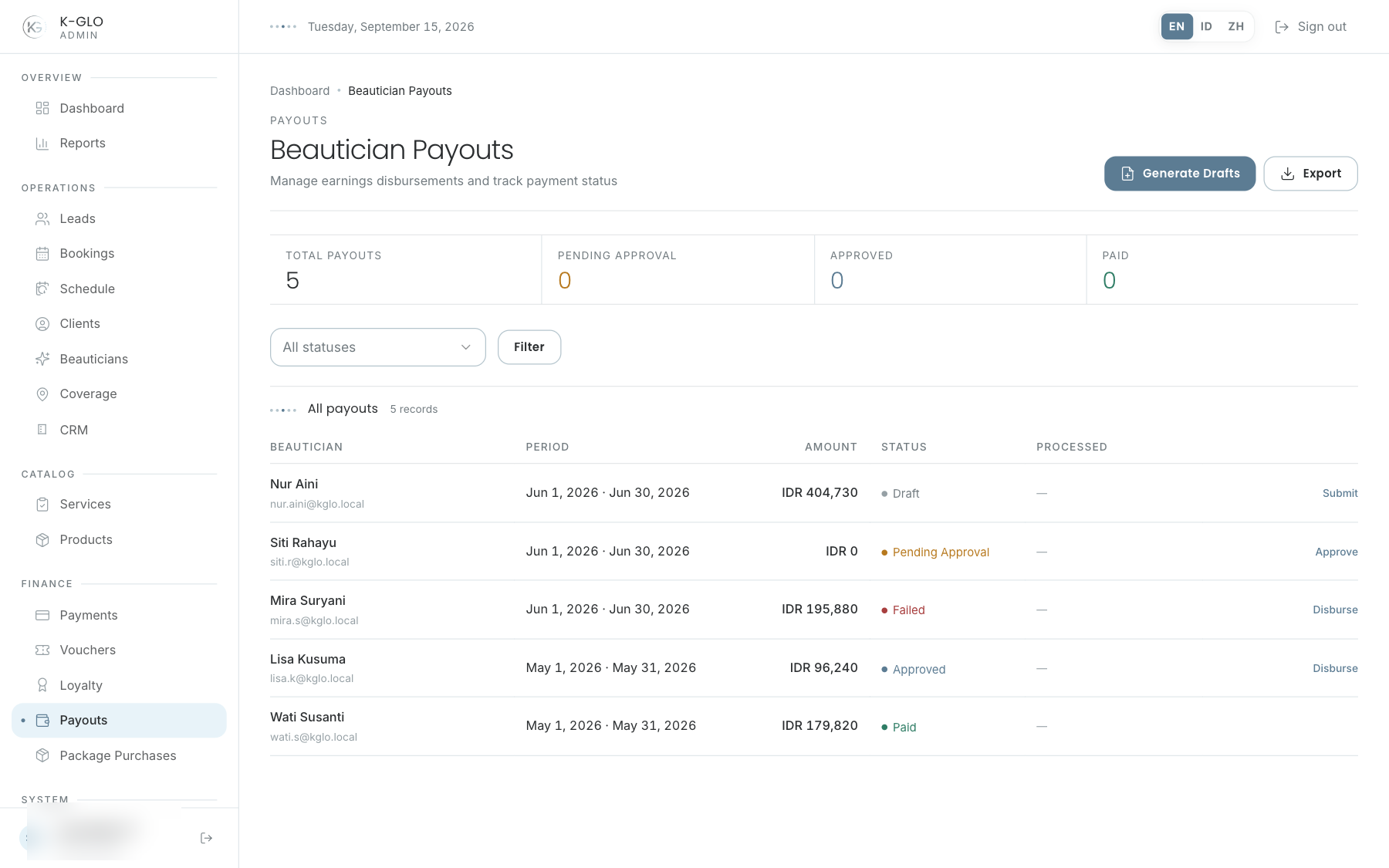
Video walkthroughs
English Admin Web recordings from isolated demo data, slowed down so the steps are easier to follow. Secret values are masked. No external payment or provider delivery is performed.
Recorded:
admin generates, approves, and fails closed on payout disbursement without provider configuration 0:14
Covered steps
- Generate an eligible payout draft, submit it, and approve it.
- Inspect and cancel the complete-bank disbursement dialog without initiating a transfer.
- With provider configuration absent, confirm the request and verify the UI rejects it while the payout and provider references remain unchanged.
- Filter the list by approved status and click the filtered CSV export.
admin cannot disburse an approved payout with incomplete bank details 0:07
Covered steps
- Open the incomplete-bank payout dialog and verify the required bank warning and disabled confirmation.
- Cancel the dialog and verify payout status and provider references are unchanged.
regular admin cannot generate payout drafts without elevated authorization 0:04
Covered steps
- Attempt to generate payout drafts as a regular admin.
- Verify access is denied and the payout count is unchanged.
admin exports each operational finance list with its CSV schema 0:06
Covered steps
- Open the payouts list and click its visible CSV export control.
- Verify the export response schema and that it contains data.
Testing boundaries
- The complete-bank confirmation journey runs with XENDIT_SECRET_KEY empty, so service configuration rejection prevents the provider call; no external transfer success is attempted. The separate incomplete-bank fixture disables confirmation and also makes no provider call.