List and quota
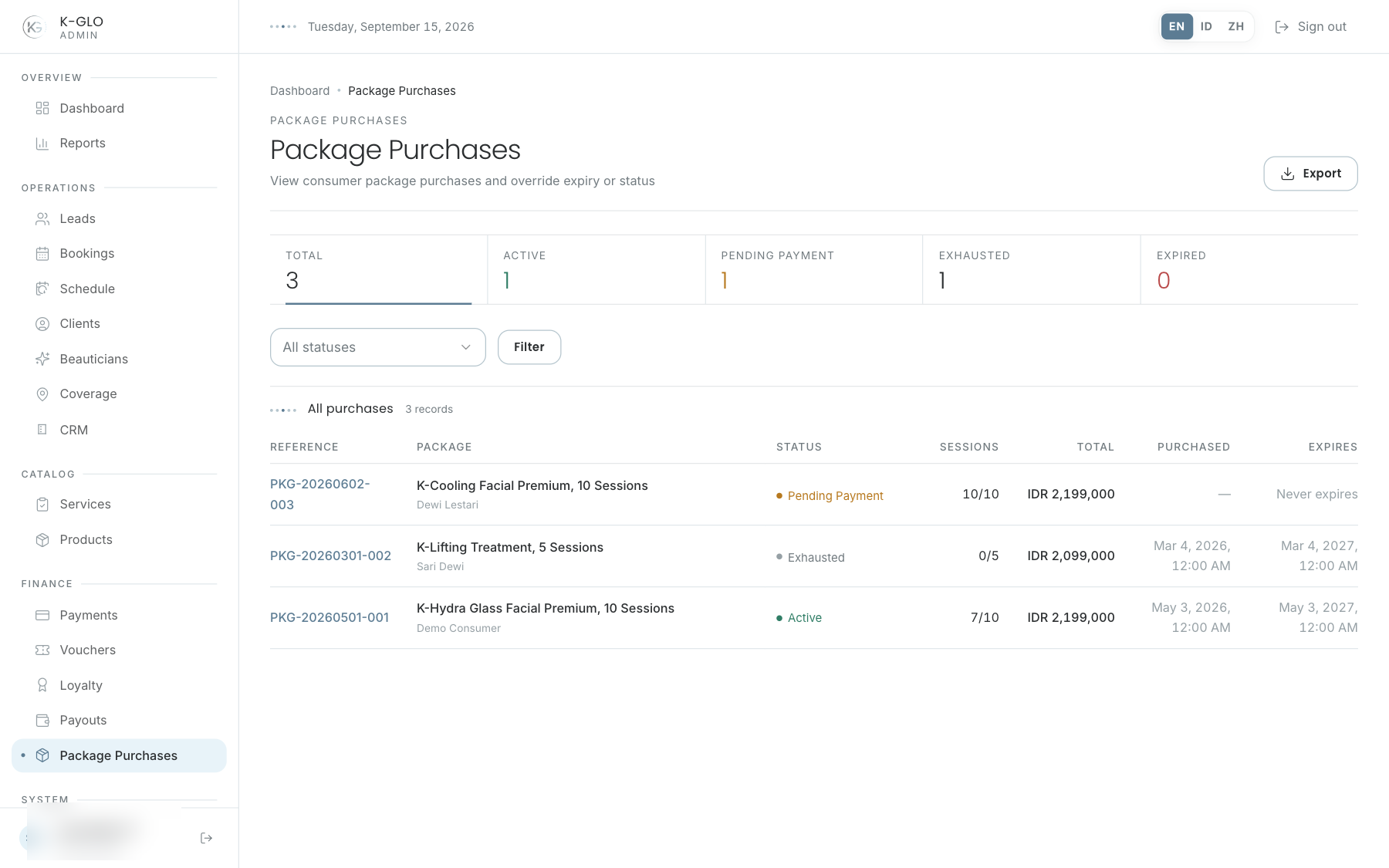
Status figures and the status filter narrow purchases. Remaining/total quota is shown as a pair; CSV export retains active filters. Open a row for details.
Detail and redemption
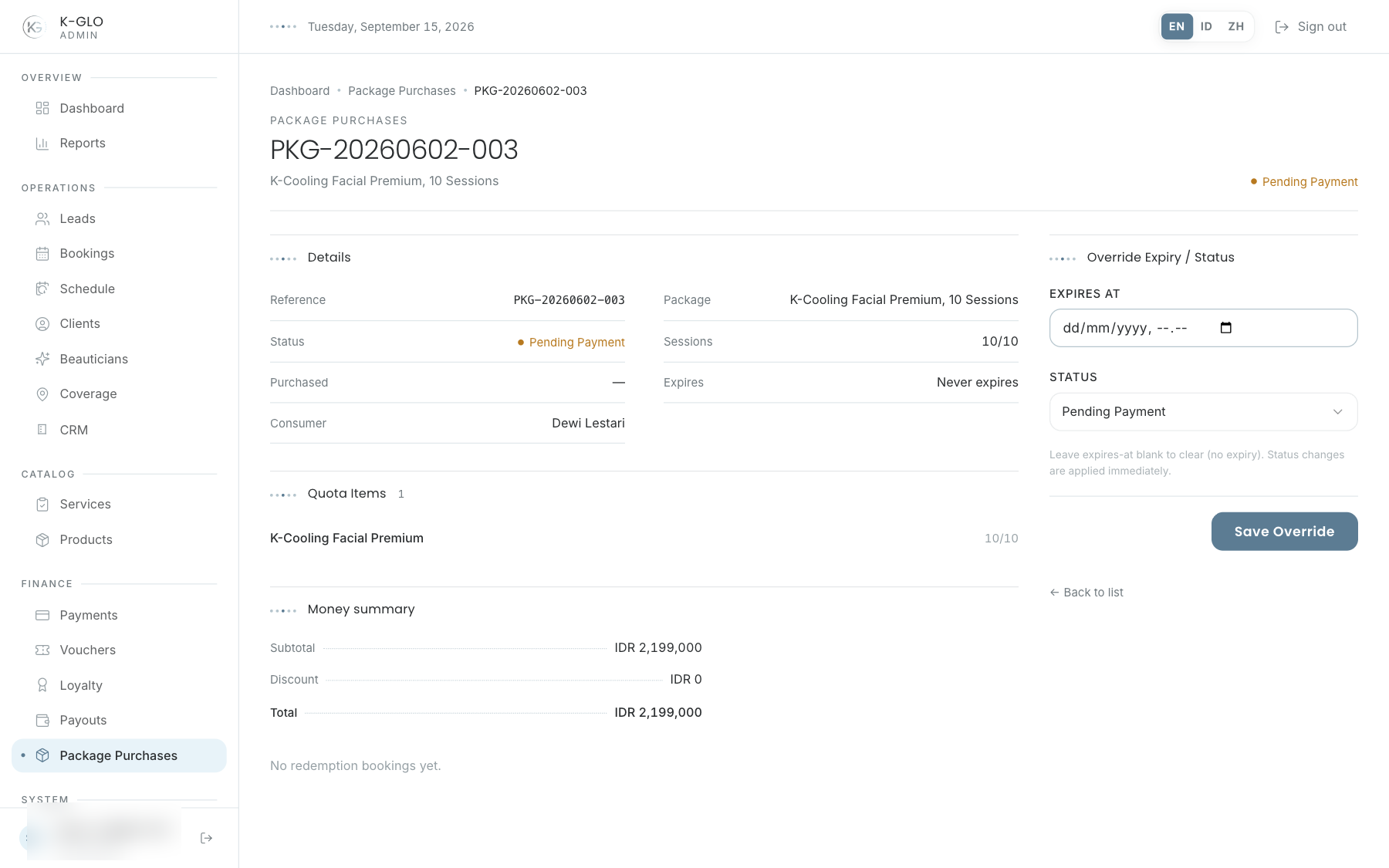
The inspector shows the customer, purchase, quota by service, value breakdown, and redemption bookings when present. Compare used sessions against history before an override.
Manual override
- Confirm the purchase and customer.
- Check the quota and redemption history.
- Enter a new status and/or expiry.
- Read the warning that an override changes usage rights.
- Save and verify the new value on the detail and list.
Use an override only under a documented operational decision.
Video walkthroughs
English Admin Web recordings from isolated demo data, slowed down so the steps are easier to follow. Secret values are masked. No external payment or provider delivery is performed.
Recorded:
admin applies a package purchase expiry/status override 0:13
Covered steps
- Inspect the purchase redemption section.
- Read the immediate-effect override warning, then set an expiry and override status to expired.
- Verify status and expiry persisted.
- Filter the list by expired status, verify the purchase, and click the filtered CSV export.
admin exports each operational finance list with its CSV schema 0:06
Covered steps
- Open the package-purchases list and click its visible CSV export control.
- Verify the export response schema and that it contains data.